
April 10, 2018
Stop Accidentally Quitting Safari
Have you ever accidentally quit your web browser and lost all of your open tabs by pressing ⌘ + Q when you meant to close a single tab by pressing ⌘ + W? This was constantly happening to me and it was driving me nuts.
I “fixed” this by remapping the Quit Safari shortcut (⌘ + Q) to a keyboard combination I wouldn’t accidentally press. I decided on the keyboard combo of Option + Q to replace it and it’s worked! I haven’t accidentally quit Safari in a while now. Here’s how I did it.
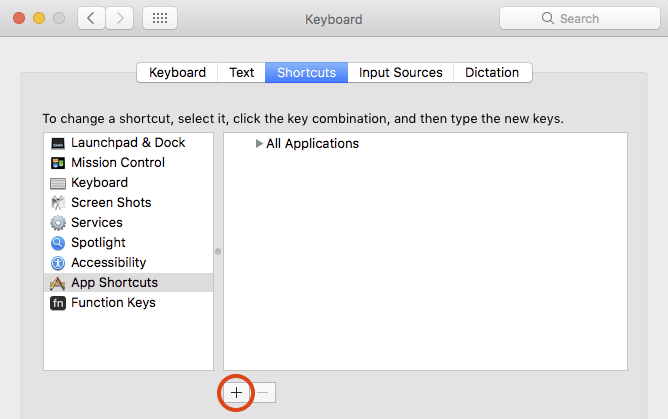
Open System Preferences and navigate to Keyboard > Shortcuts > App Shortcuts. Press the + icon. A small screen will appear that looks like this:

Under Application, select the web browser you normally use. In this example it’s Safari. under Menu Title input Quit Safari. If you choose Chrome instead of Safari, type Quit Google Chrome. If you’re using a different browser, make sure what you input matches the menu label in the App you are modifying.
Next, enter the keyboard shortcut you want to use instead of what the default is set to. Click Add when you’re done.
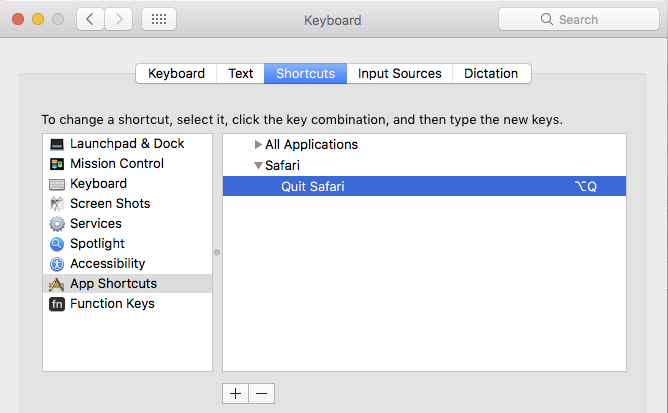
Congratulations! Your new menu shortcut key combo is now set. No more accidentally quitting your browser by pressing ⌘ + Q accidentally!