
May 6, 2022
Shortcut to Track the Music You Listen to Using Last.fm
Since I finally upgraded to macOS Monterey a couple of months ago, I spent some time exploring the Shortcuts app on macOS to see how well it works. I’ll start by saying that, as of this writing, Shortcuts is a really bad app, and not one I’d expect from Apple. There are still a lot of instability, quirks, and bugs. Regardless of criticism, it’s amazing that Apple has brought Shortcuts to the Mac, and for the most part, it works!
The first shortcut I chose to work on logs the music that I listened to during the day into the Day One app (although you could modify it to use any other app). I wanted to include the artist’s name, song title, album from which the song was taken, and, if possible, the time the song was played. Apple Music has all of this data, but there doesn’t appear to be a mechanism to access my listening history as far as I can tell. Enter LastFM, a service that tracks your listening habits, displays aggregated statistics, and recommends artists based on your listening patterns. By connecting Apple Music to LastFM’s API, I was able to build this shortcut. You’ll need a Last.fm account as well as a API key. You can get one here. You’ll also need Drafts app and Day One. This shortcut will work for both macOS and iOS.
Here’s how it works: When the shortcut is triggered, it asks you to select a date from which it should gather listening data. The shortcut is designed to gather all listening data from a single day. In other words from the start of a day until the end of the day. You may only get a partial list of listening data if you run the shortcut in the middle of your day. I tend run the shortcut in the morning, and choose the previous day in order to get the entire day’s listening log.
When launching the shortcut, you’ll notice that no matter what day is chosen, the default time is always 12am. This is to ensure the data is captured from the start of the day.

Set the date and time.
The next step converts the date and time chosen into a Unix timestamp format. Basically, it converts the date and time into seconds based on the start date of January 1, 1970 00:00 UTC. This becomes the startdate variable. To this start time, I add 24 hours in seconds (86400) to create the enddate variable. This creates a full 24-hours.

Create the start and end date variables.
Next, the shortcut uses the Last.fm API key, username, start and end dates and creates a call to the API requesting the tracks for the date chosen.
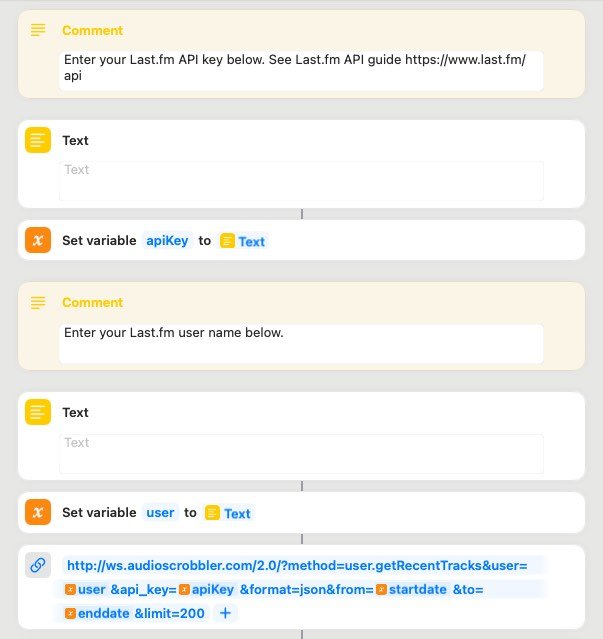
Enter your Last.fm API key and username here.
After the shortcut has grabbed all of the track data, I found that I needed to adjust the time to reflect the timezone I lived in. The shortcut uses Hawaii Standard Time (HST), which is -10 hours. You can change this to your own timezone by adding or subtracting based on UTC.

Adjust the the timezone here to get correct track play times.
Once the shortcut has parsed all of the track data, it removes any duplicate lines that it finds. Sometimes using multiple devices to play music can confuse Last.fm and cause multiple entries. This step ensures that the final output data is cleaned up.
Finally, the data is output to Drafts app before being exported to Day One. Day One’s shortcut action doesn’t seem to allow line breaks, so the easiest way to create a proper entry title followed by the list of tracks is to use Drafts. If anyone knows how to create line breaks in the Day One shortcut action, please let me know!

Creating the entry in Drafts allows the addition of a proper entry title.
Once the data has been written to Drafts, the shortcut triggers a Drafts action that exports the draft to Day One, then deletes the draft. You can download the Drafts Day One action here. You can choose to skip the Drafts step entirely and write the list directly to Day One.
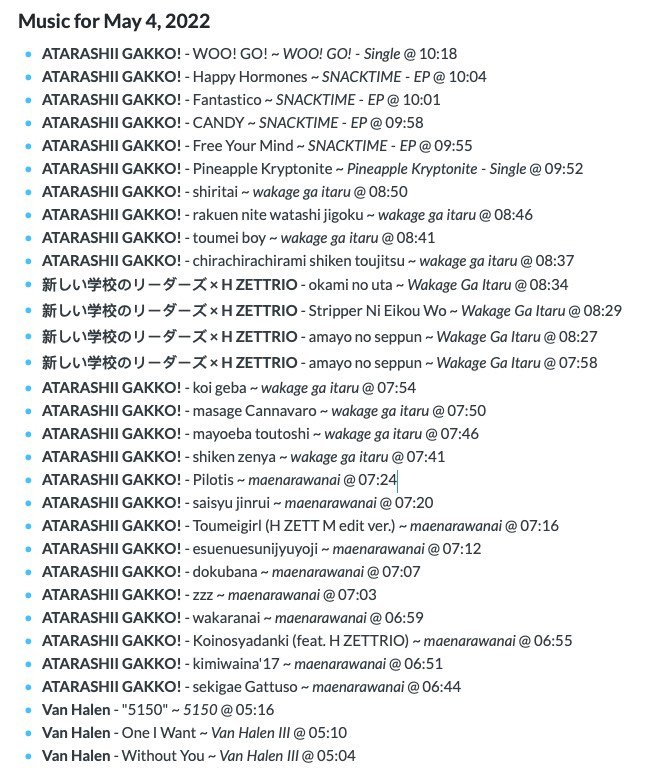
An example of completed output from Last.fm in Day One.
This is the first shortcut that I’m putting out there. I’d love to hear if you’ve found it useful, or if you have any suggestions on how to improve it.
Download the Last.fm Tracks to Day One Shortcut [Compatible with macOS and iOS]
Here are a few references I used while working on this shortcut:
- Shortcuts User Guide for iOS
- Shortcuts User Guide for Mac
- API Docs | Last.fm
- Epoch & Unix Timestamp Conversion Tools
- Hours to Seconds
- Day One URL Scheme